How To Set-Up Your LEO-PRO Account
Below you will find step-by-step instructions to help you set up an account and add payment information:
- Click LEO-PRO in the header menu.
- Scroll down and click “Sign up for LEO-PRO".
- The registration page will appear. Type in your company, the email of your administrator, and your administrator’s first and last name in the provided fields.
- You must review and agree to the License Agreement and Privacy Policy. Check the boxes and hit submit.
- The email you submitted will receive an email to verify their account. In the email from LEO, click “Register User”.
- The user will select a password to complete their user registration. They will need to enter it twice to confirm the password. Once this is complete, they will click “Register User”.
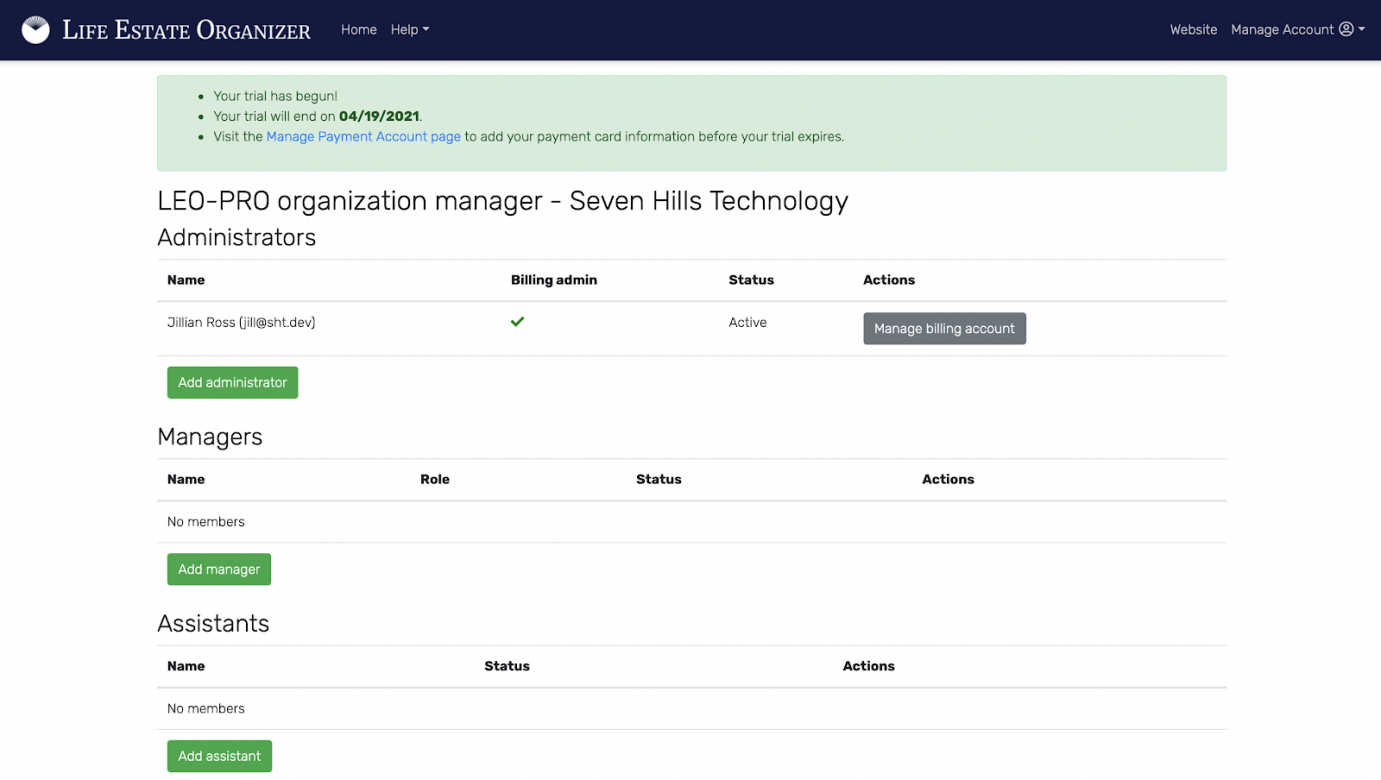
- When “Launch” is clicked, the full profile will be visible.
To connect a card for payment, click the grey “Manage billing account” found underneath Actions.
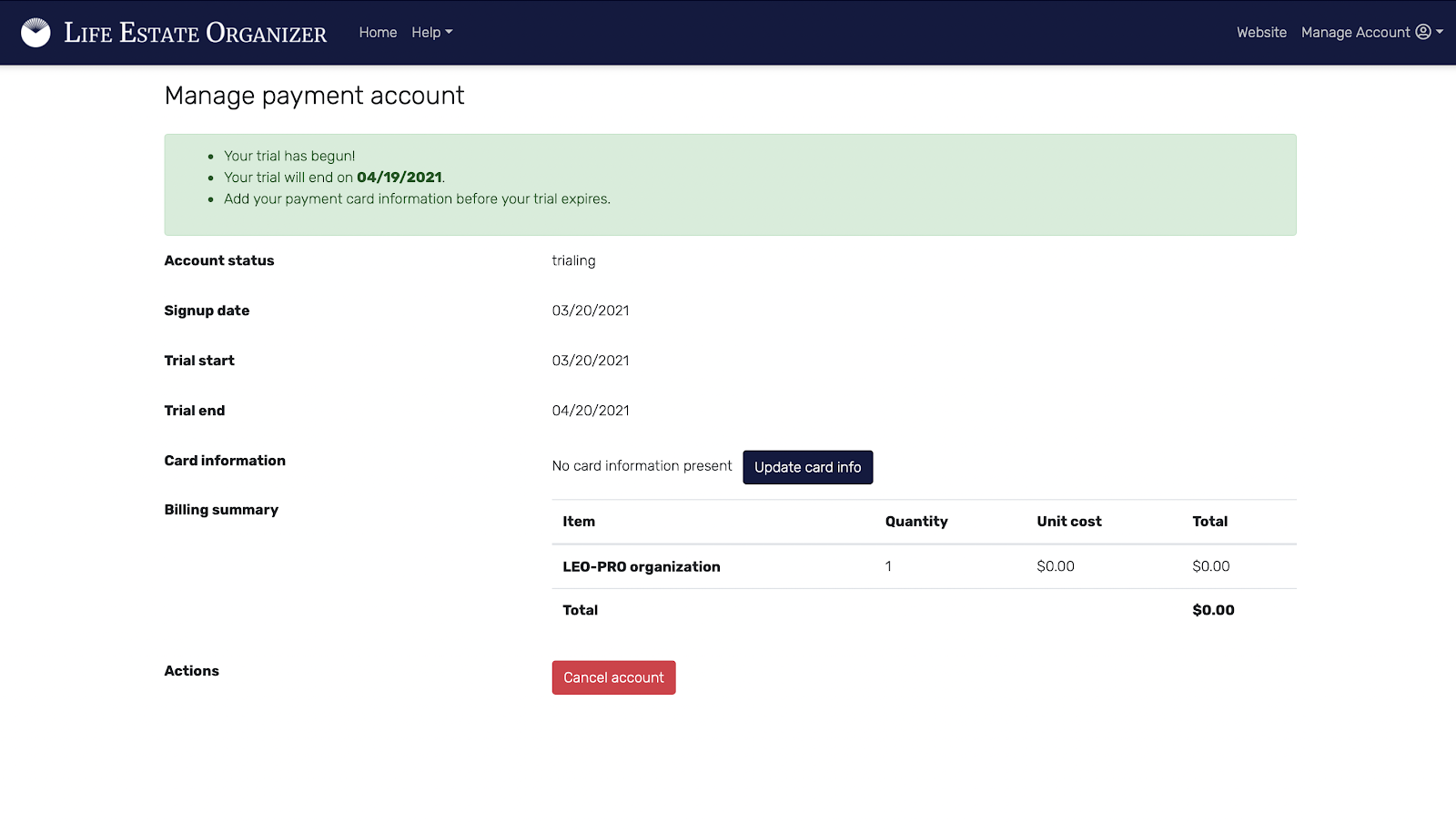
- When the box appears, put in your credit card information with the corresponding name and address.
- Click Submit to add your payment.
- After this is complete, you will be returned to the Manage Payment Account page.
- To begin, visit our website at lifeestateorganizer.com.
- Click the “SIGN IN” button on the upper right corner of the site.
- Log in using your LEO-PRO credentials: email and password.
- Your account will appear upon a successful sign in. Click "Launch” to proceed.
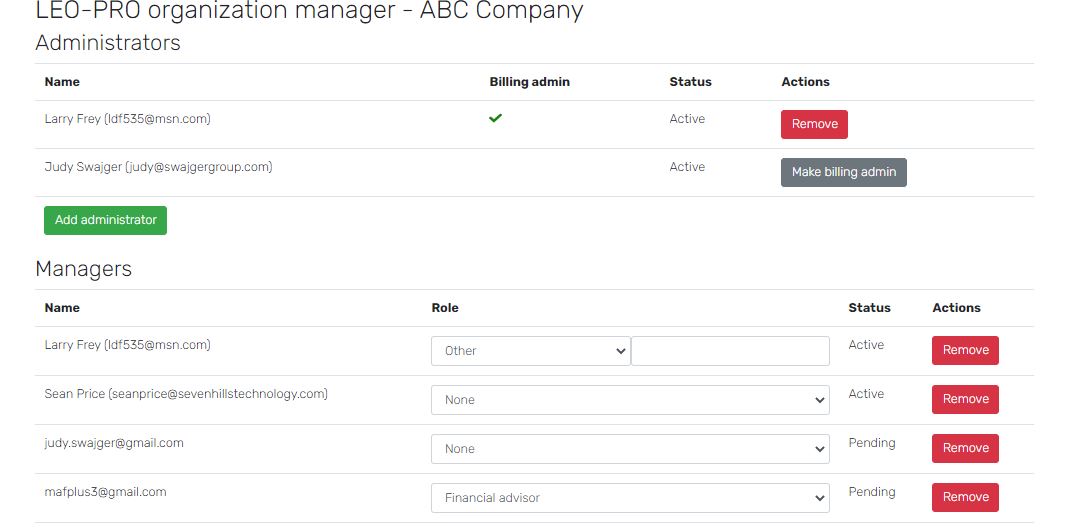
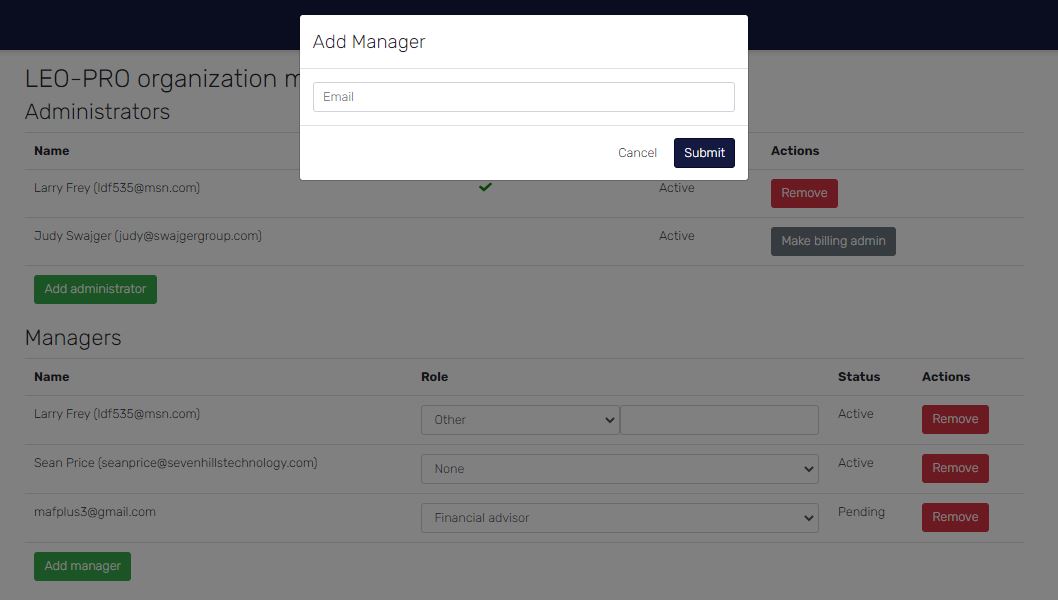
- Click the corresponding green button for the role you would like to assign: “add administrator”, “add manager”, or “add assistant”.
- When one of these green buttons is clicked, a box will pop up asking for an email address of the person you would like to assign this role to
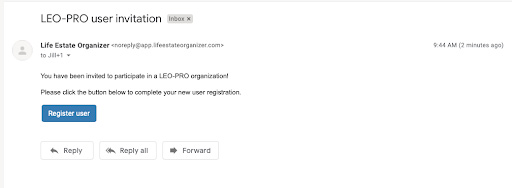
- After their signup is complete, they will then click “accept” on LEO-PRO.
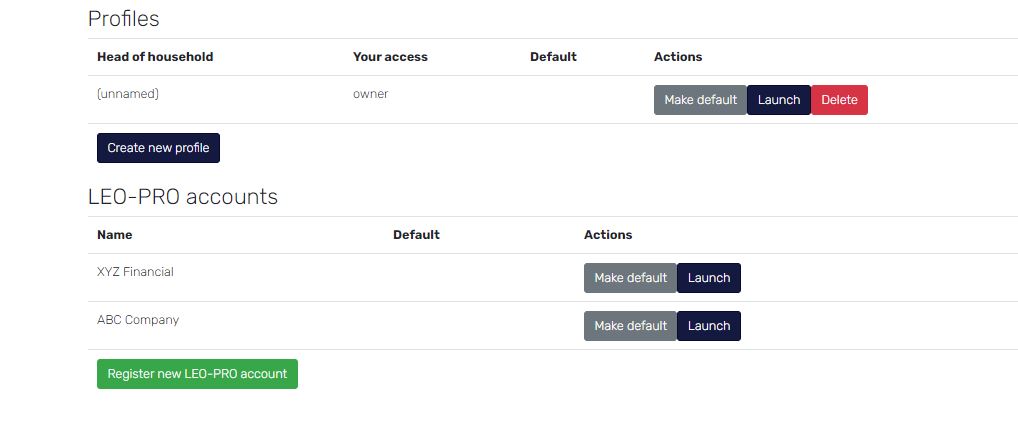
- After they accept, their status will change to active and you may assign them a role from the drop-down menu if you wish.